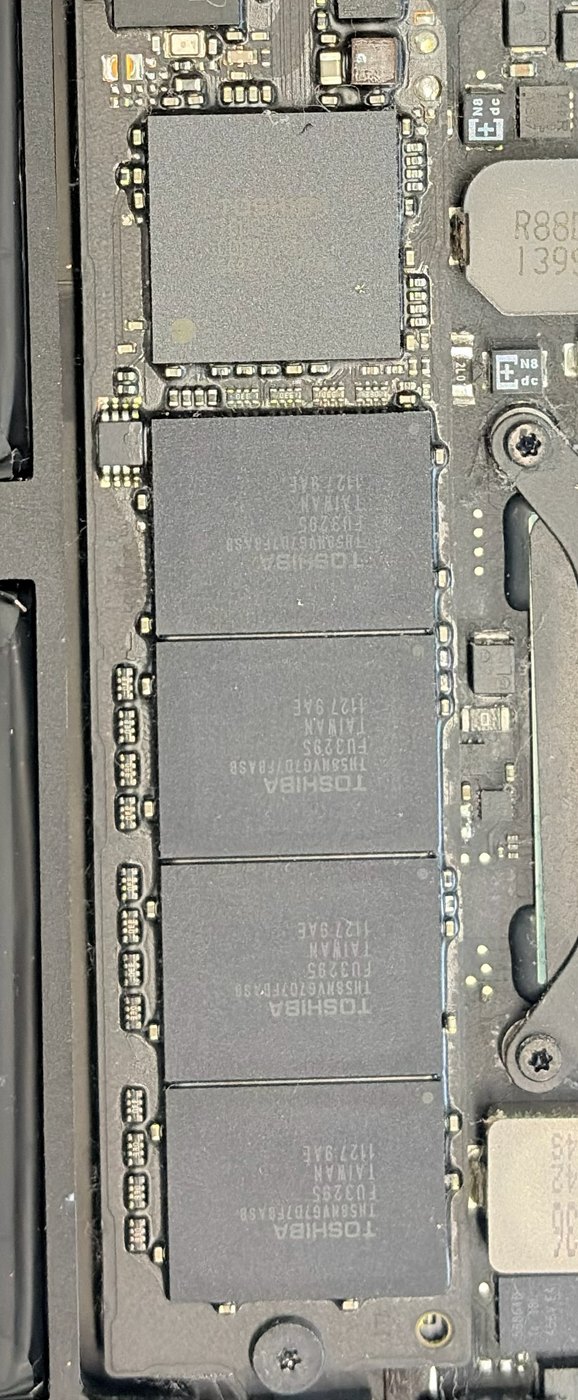
Device: MacBook Air 11" Mid 2011, A1370, board 820-3024, Apple SSD TS064C (Toshiba 64 GB blade), Mac OS X 10.7.5
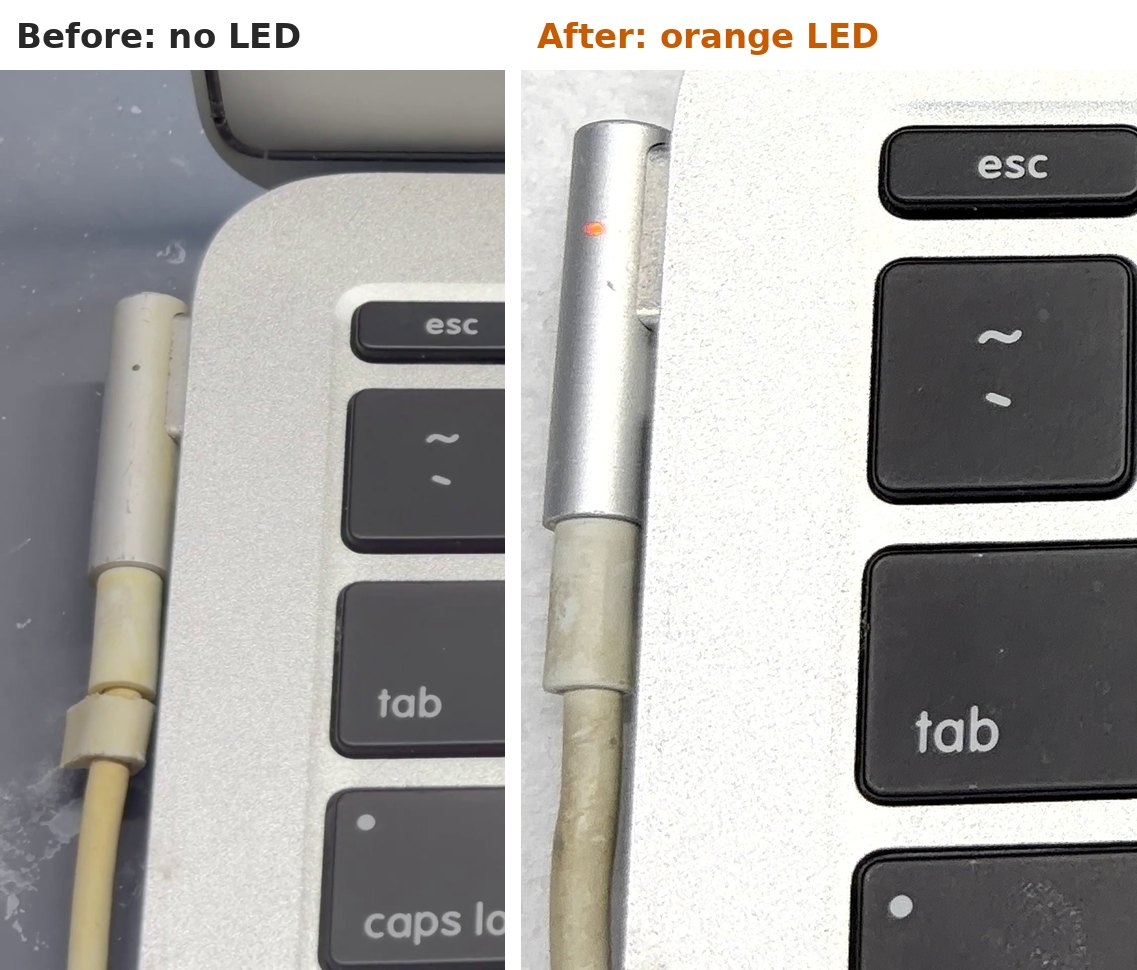
Symptoms: dead on arrival. Charger plugged in and the MagSafe LED stays off, no orange and no green. After it powered on, Recovery worked but macOS would not start.
Result: fixed with no parts. It boots to the user’s desktop with all apps and data.
Cause: two faults. The battery was flat and the SMC was not answering the charger. The SSD was worn out and had lost a few pages of the file system.
Part 1: no power, no MagSafe LED
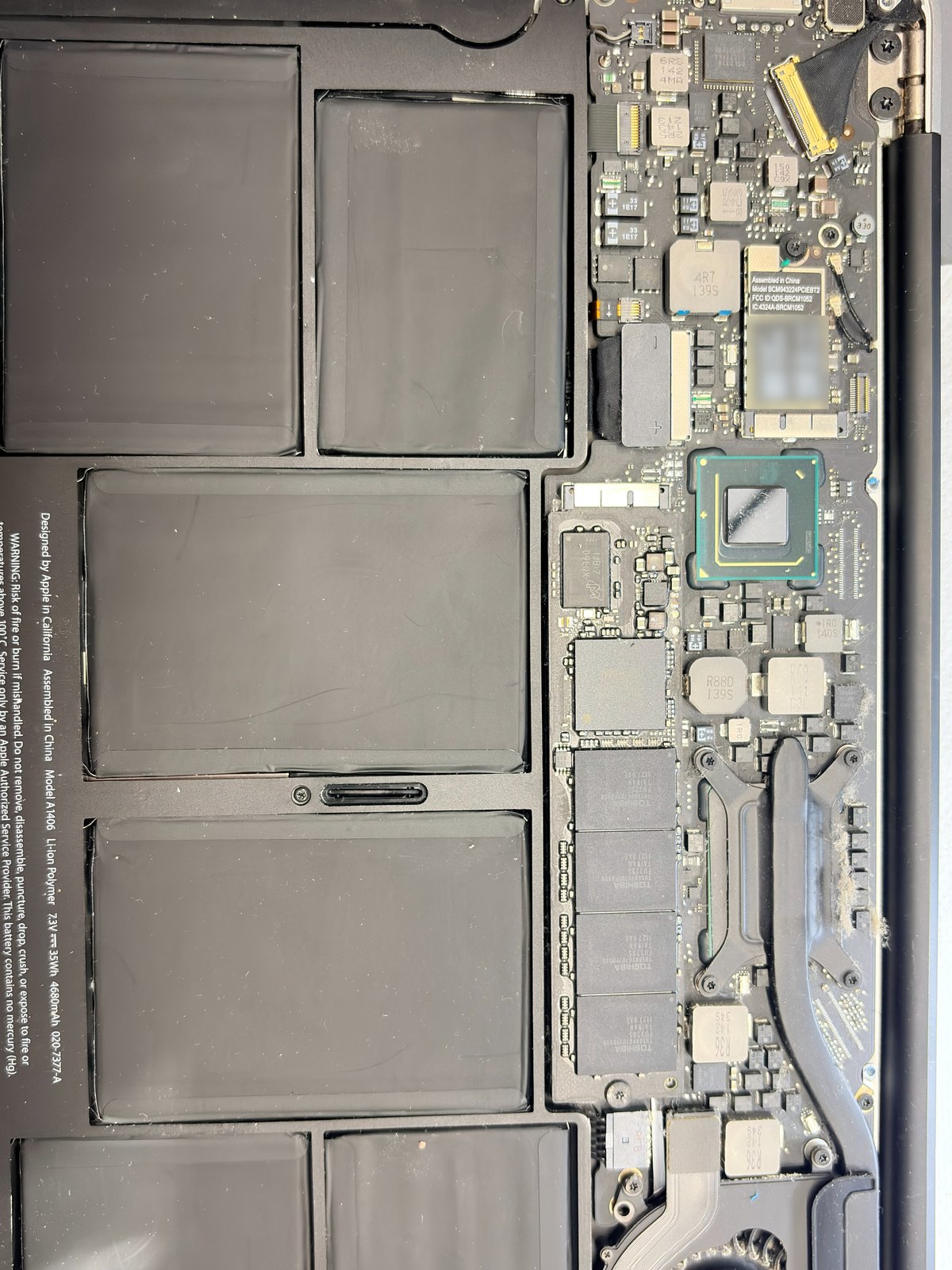
On these Airs the LED on the MagSafe plug is switched on by the Mac itself. The SMC (U4900) talks to the charger on one wire, net SYS_ONEWIRE. A good charger with no LED at all means the SMC is not talking to it.
We opened it first and checked for liquid. No liquid marks and no corrosion. Only dust in the fan and on the heatsink, and we cleaned it.
Then a PRAM reset and an SMC reset. The LED came on orange and the Mac powered on.
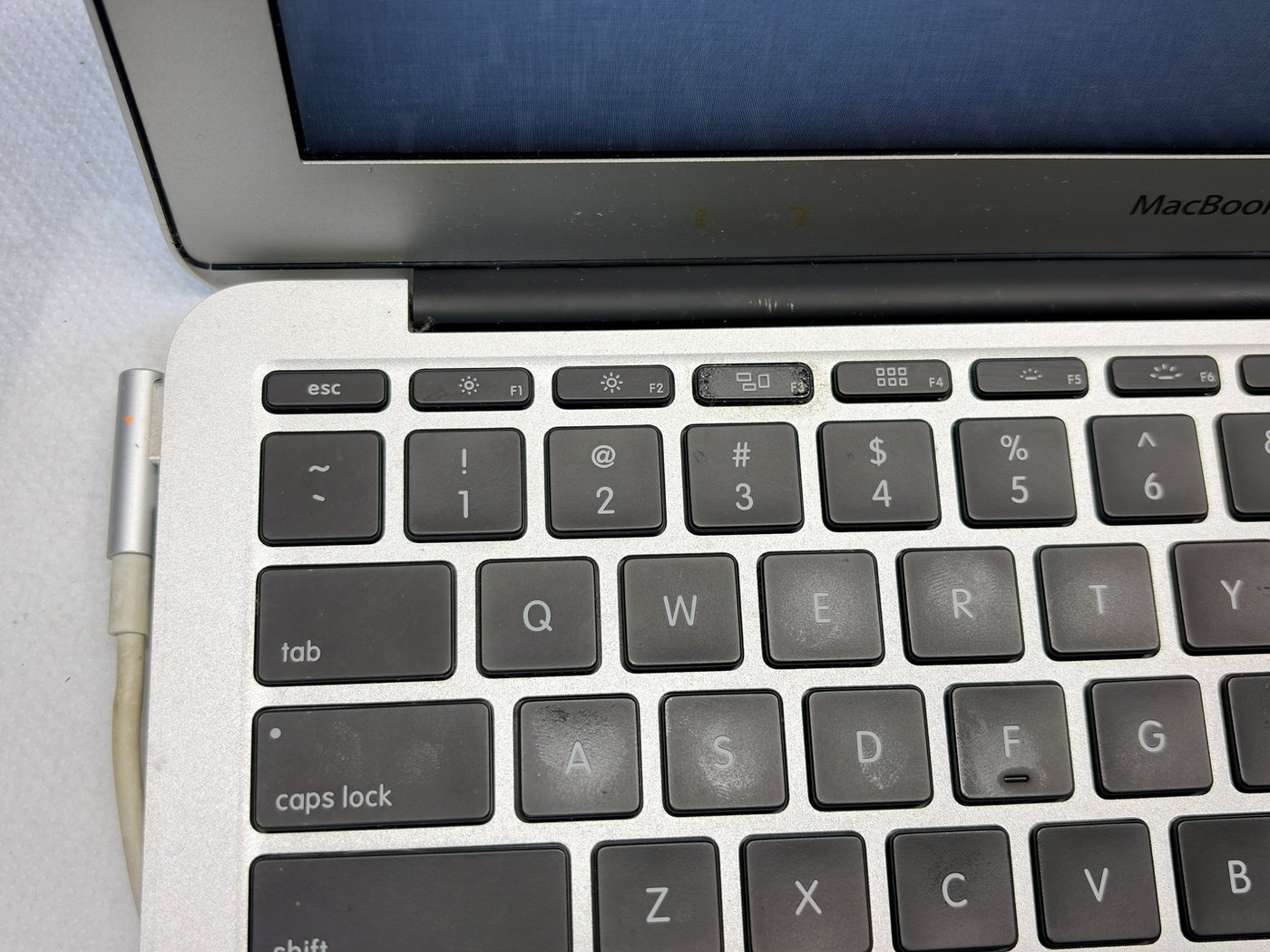
Signs that the battery had gone fully flat:
- The clock was back at 2011/2012. This Air has no coin cell, so a flat battery resets the clock.
- Recovery showed the battery at 10 % after charging had started. Battery 305 cycles, condition Normal.
SMC reset on this model: shut down, charger connected, hold left Shift + Control + Option and the power button for 10 seconds, let go, then press power.
PRAM reset: power on and hold Cmd + Option + P + R until the second chime.
Part 2: powers on but macOS does not start
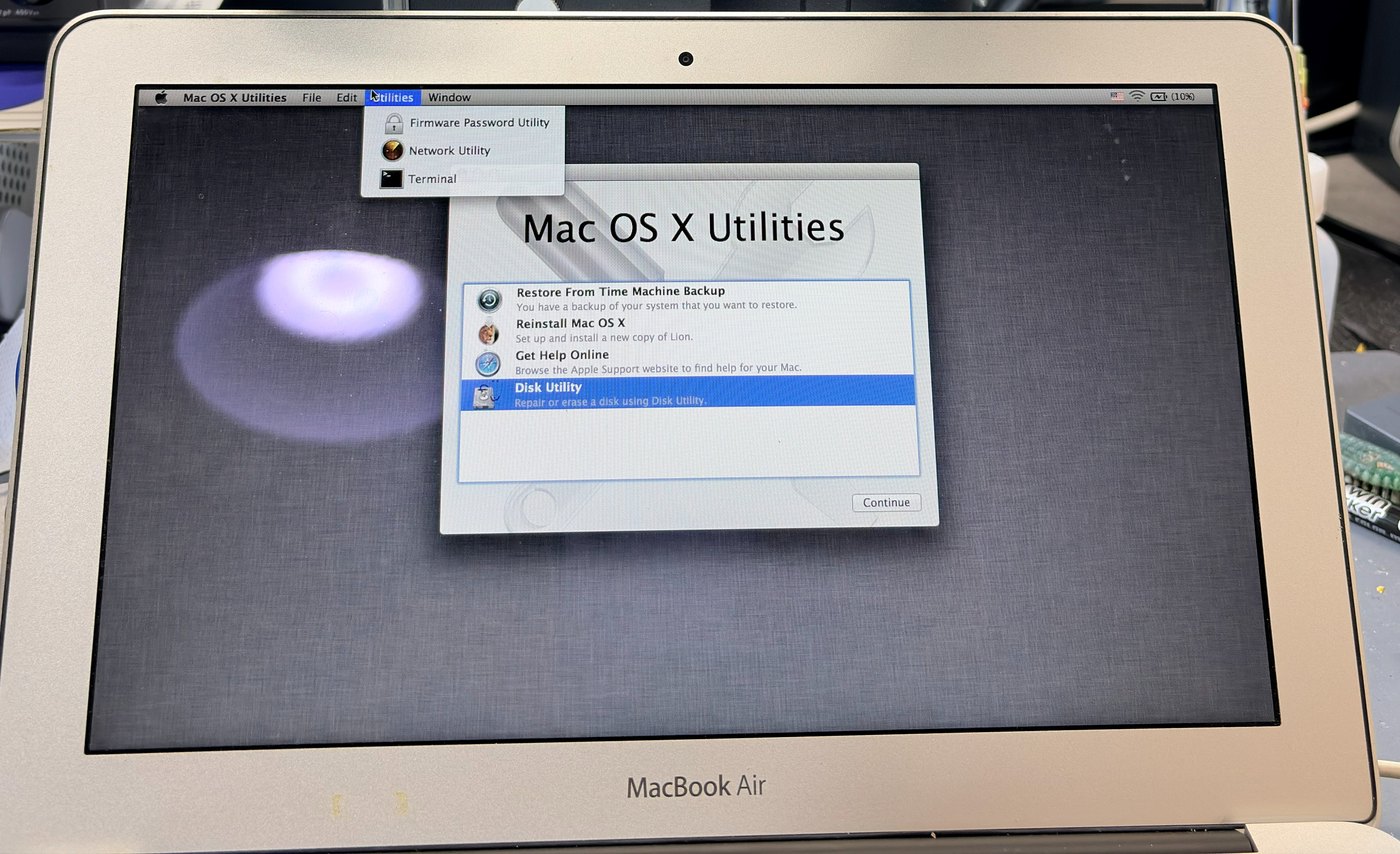
Recovery (Cmd + R) worked and the SSD showed up. Normal boot started the startup disk check and never finished. The disk was 93 % full (3.9 GB free).
We checked from the Recovery Terminal, read only:
- SMART status Verified, 0 errors.
- Read speed test: 12.8 MB/s. This Toshiba blade reads about 150 to 200 MB/s when healthy.
diskutil info disk0 | grep -i smart
dd if=/dev/rdisk0 of=/dev/null bs=1m count=2048
SMART said the drive is fine and the speed said it is dying. Trust the speed. A worn SSD keeps retrying weak pages, so it gets slow long before SMART reports anything.
Part 3: data first, one full image
First we tried the easy ways. Target Disk Mode and a direct transfer both failed to get the data. The user account has a password. And the customer had very important memories inside, so we had to take every step carefully.
A slow SSD gets worse with every read. So we read it once, completely, into an image on a USB stick, then did all further work on the image.
dd if=/dev/rdisk0 of=/Volumes/STICK/disk0.img bs=1m conv=noerror,sync
- It took 195 minutes at 5.2 MB/s. The SSD got slower during the read.
- 4 read errors. On each one macOS kept the start of the 1 MB block and filled the rest with zeros.
- Note for Lion Recovery: it has no
tee,duorbasename. Scripts that use them stop half way.
Then we checked the image on the PC:
- Partition table, both volume headers and Recovery HD were fine.
- 12 files sat on the 4 bad spots: a few photos, 2 phone backup files and some thumbnails.
- Why it did not boot: 8 pages of the catalog (the HFS+ file list) read back as all zeros, with no read error at all. The startup disk check got stuck there. Those pages held 325 entries, all temporary and system files. No user folder was missing anything.
Re-read only the bad spots. We went back to the 4 spots in small blocks, 4 KB and then 512 bytes per read. Each spot was one bad 16 KB flash page. Almost everything came back.
Final loss: 48 KB. Parts of 2 phone backup files and 1 thumbnail that the Mac rebuilds by itself. Every photo is complete.
Part 4: putting it back on the same SSD
The customer did not want a new SSD. So we erased the old one (Disk Utility verify passed after that) and wrote the image back: 36 minutes, no errors, spot checks identical.
Then Disk Utility / fsck stopped with this every time:
Invalid index key (4, 7306)
** Rebuilding catalog B-tree.
   Disk full error
** The volume Macintosh HD could not be repaired.
Why “Disk full” when 4.2 GB is free: fsck rebuilds the catalog by writing a new copy of it in free space first. The catalog here is 340 MB. The free space was cut in 34,984 small pieces. The biggest piece was 40 MB and the 8 biggest together only 226 MB. So there was no room for a 340 MB copy. fsck_hfs -d shows it:
BlockFindAll: found 55094 blocks but needed 82944
Running fsck again never helps. It hits the same wall every time.
The fix: we repaired the catalog on a copy of the image on the PC. We rebuilt its index inside the space the catalog already has, so it needed no free space at all. We also cleaned up entries the failing SSD had left half written, all of them temporary system files. We tested it with the same fsck version as the Mac’s Recovery before touching the Mac.
Then a 3 MB patch went onto the SSD from Recovery. Every block was checked against the image before writing. After that Apple’s fsck did the small repairs and said “The volume Macintosh HD appears to be OK.” It boots straight to the desktop.
After the erase and rewrite the same SSD reads 214 MB/s again. Fresh writes fixed the weak pages for now. But this SSD has already lost data once, so the customer is setting up a Time Machine backup.
Lessons
- Good charger and no MagSafe LED at all means the SMC is not talking to the charger. Check for liquid first, then do the SMC reset. This one needed no part.
- Clock back at 2011 or 2012 on a MacBook Air means the battery was fully flat.
- Don’t trust SMART “Verified” on a slow SSD. Test the read speed. This one read 12.8 MB/s and a good one reads 150 to 200.
- Make one full image of the SSD, read only, and work on the image. Then re-read only the bad spots in small blocks.
- Catalog pages can come back empty with no read error. The Mac then stops at boot and shows no error.
- “Disk full error” in the catalog rebuild with GBs free means the free space is too broken up. Running fsck again will not fix it.
- A worn SSD can read fast again after a full rewrite but it already lost data once. Back it up.
Had the same fault? Post your readings below, and if this fixed it, mark the solution so the next person finds it.